If you are having issues recording video for an assignment, we would recommend trying the following steps in order:
Check your Microphone and Camera Permissions
How to Check Microphone and Camera Permissions in Chrome
If you are having trouble using the built-in audio or video recorder in BOCCE, the issue may be due to camera or microphone permission settings within Chrome.
To check your camera permissions, take the following steps:
- Click the three-dotted icon at the top right of Chrome and select Settings.
- Select Privacy and Security on the left menu.
- Select Site Settings.
- Select Camera.
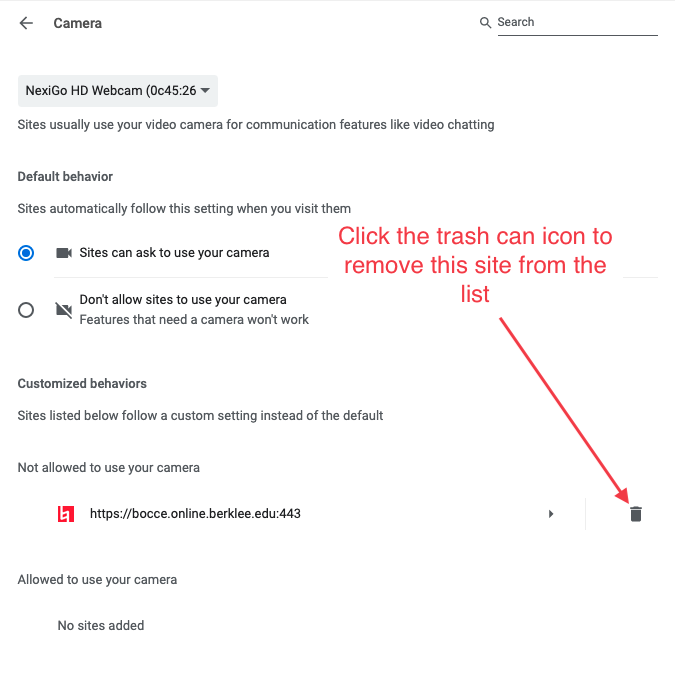
- Make sure Sites can ask to use your camera is selected.
- If you see any variation of bocce.online.berklee.edu listed in the Not allowed to use your camera section, click the trash can icon corresponding to that entry.
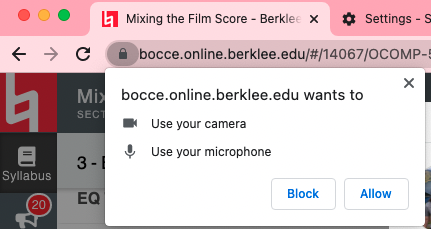
After taking the steps above, the next time you try to use the BOCCE built-in video recorder in Chrome, you should see a prompt stating that “bocce.online.berklee.edu wants to use your camera” (and microphone, possibly). Click Allow, which should allow you to use the video recorder without issue.
To check your microphone permissions, take the following steps:
- Click the three-dotted icon at the top right of Chrome and select Settings.
- Select Privacy and Security on the left menu.
- Select Site Settings.
- Select Microphone.
- Make sure Sites can ask to use your microphone is selected.
- If you see any variation of "bocce.online.berklee.edu" listed in the Not allowed to use your microphone section, click the trash can icon corresponding to that entry.
After taking the steps above, the next time you try to use the BOCCE built-in video or audio recorder in Chrome, you should see a prompt stating that “bocce.online.berklee.edu wants to use your microphone” (and camera possibly). Click Allow, which should allow you to use either built-in recorder without issue.
Clear Your Browser's Cache
How to Clear Your Browser's Cache
Select your browser from the options below for instructions on how to clear your browser's cache.
Chrome
PC/Mac
If you are using Chrome on a computer, you can take the following steps to clear your cache:
- Click on the three-dotted icon at the top right of Chrome.
- Click Delete Browsing Data. If it does not appear in the main menu, mouse over More Tools, which will reveal more menu items, then click Delete Browsing Data.
- Ensure that Basic is selected at the top of the window.
- Set the Time Range to All Time.
- Make sure that only the third checkbox (Cached images and files) is selected.
- Click the blue Delete Data button.
- Quit and reopen Chrome before trying to access the page previously causing issues.
Mobile
If you are using Chrome on a mobile device, use these steps to clear your cache:
- Tap the three-dotted icon at the bottom right of Chrome.
- Select Delete Browsing Data.
- Set the Time Range to All Time.
- Make sure that only the third item (Cached Images and Files) is checked.
- Select Delete Browsing Data at the bottom of the screen.
- Quit and reopen Chrome before trying again.
Firefox
- Click the three horizontal lines in the top right of Firefox and select Settings.
- Click Privacy & Security.
- Scroll down to the Cookies & Site Data section and click Clear Data.
- Uncheck the box for Cookies and Site Data and click Clear.
- Quit and reopen Firefox before trying again.
Safari
Mac
If you are using Safari on a Mac, use these steps to clear your cache:
- Select Safari > Preferences… at the top left of Safari.
- Click the Advanced tab, then check the box next to Show Develop menu in the menu bar.
- From the menu, select Develop > Empty Caches.
- Quit and reopen Safari before trying again.
Mobile
If you are using Safari on a mobile device, use these steps to clear your cache:
- On your Mobile Device, navigate to Settings > Safari.
- Tap Clear History and Website Data.
- Click Clear History and Data on the confirmation bar.
- Close and reopen Safari before trying again.
If you're still having issues after completing both these steps, try restarting your computer and recording your video again. If you continue to have issues, please feel free to reach out to us at support@online.berklee.edu